> ## Documentation Index
> Fetch the complete documentation index at: https://actianvectorai-ml-crtx-1153-academy-tutorial-rewrites.mintlify.site/llms.txt
> Use this file to discover all available pages before exploring further.
# Local UI
> Manage and interact with VectorAI DB through the built-in web interface.
The VectorAI DB Local UI provides a visual interface for managing collections, running queries, and inspecting your data. Access it directly from your browser with no additional tools required.
**Docker Compose required**: Local UI is available only via the VectorAI DB Docker container. Ensure your stack is up before accessing the interface. [Setup instructions →](/home/installation/instructions)
## Accessing the Local UI
Once your Docker Compose stack is running, open your browser and navigate to:
```
http://localhost:6575
```
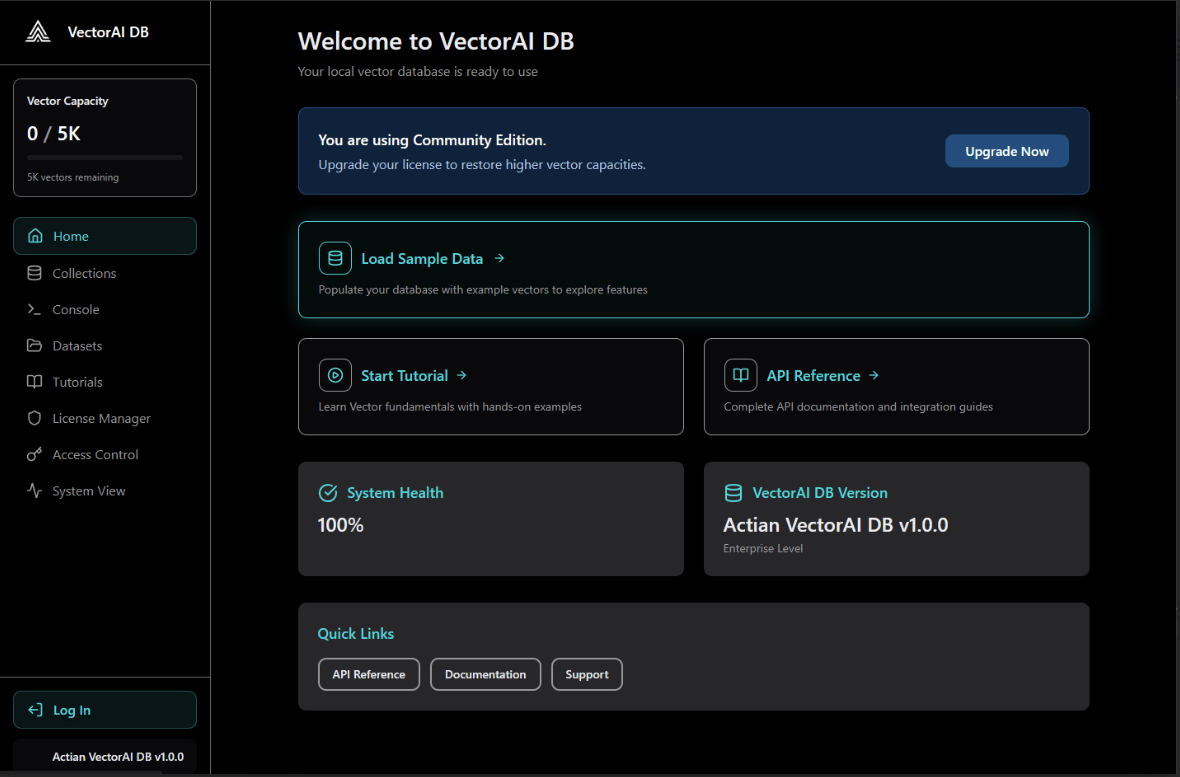
You should see the VectorAI DB dashboard load immediately. No login is required for local deployments.
 ## Overview
The dashboard is divided into two main sections.
| Section | Description |
| ----------- | --------------------------------------------------- |
| Console | Execute REST API calls and inspect raw responses. |
| Collections | Browse, manage, and search your vector collections. |
## Console
The Console lets you interact with the VectorAI DB REST API directly from the browser. Use it to run ad-hoc requests, test queries, and inspect API responses without leaving the interface.
You can issue requests against any available API endpoint and view the full JSON response alongside HTTP status codes.
## Collections
The Collections section gives you a visual overview of all collections currently stored in VectorAI DB. From here you can perform the following actions.
* View all existing collections and their configuration.
* Inspect vector count, dimension size, and distance metric for each collection.
* Browse individual vectors and their associated payloads.
* Run similarity searches against a collection using a vector or an existing record's ID.
* Delete collections you no longer need.
### Browsing vectors
Select any collection from the list to open its detail view. The detail view displays a paginated table of all stored vectors along with their payload fields. You can scroll through records or filter by payload values to locate specific entries.
### Running a search
To run a similarity search from the UI:
Select the collection you want to search from the Collections list.
Click the *Search* tab within the collection detail view.
Enter a JSON array representing your query vector in the input field.
Configure `top_k` to control how many results to return. Optionally apply payload filters to narrow results.
Click *Search* to execute. Results appear ranked by similarity score, with each result showing its ID, score, and payload.
## Next steps
Explore these resources to learn more about working with VectorAI DB.
Use the Python SDK for programmatic access to VectorAI DB
Explore the full REST API reference
Learn about collections, vectors, and payloads
Resolve common issues with VectorAI DB
## Overview
The dashboard is divided into two main sections.
| Section | Description |
| ----------- | --------------------------------------------------- |
| Console | Execute REST API calls and inspect raw responses. |
| Collections | Browse, manage, and search your vector collections. |
## Console
The Console lets you interact with the VectorAI DB REST API directly from the browser. Use it to run ad-hoc requests, test queries, and inspect API responses without leaving the interface.
You can issue requests against any available API endpoint and view the full JSON response alongside HTTP status codes.
## Collections
The Collections section gives you a visual overview of all collections currently stored in VectorAI DB. From here you can perform the following actions.
* View all existing collections and their configuration.
* Inspect vector count, dimension size, and distance metric for each collection.
* Browse individual vectors and their associated payloads.
* Run similarity searches against a collection using a vector or an existing record's ID.
* Delete collections you no longer need.
### Browsing vectors
Select any collection from the list to open its detail view. The detail view displays a paginated table of all stored vectors along with their payload fields. You can scroll through records or filter by payload values to locate specific entries.
### Running a search
To run a similarity search from the UI:
Select the collection you want to search from the Collections list.
Click the *Search* tab within the collection detail view.
Enter a JSON array representing your query vector in the input field.
Configure `top_k` to control how many results to return. Optionally apply payload filters to narrow results.
Click *Search* to execute. Results appear ranked by similarity score, with each result showing its ID, score, and payload.
## Next steps
Explore these resources to learn more about working with VectorAI DB.
Use the Python SDK for programmatic access to VectorAI DB
Explore the full REST API reference
Learn about collections, vectors, and payloads
Resolve common issues with VectorAI DB